Web Overview
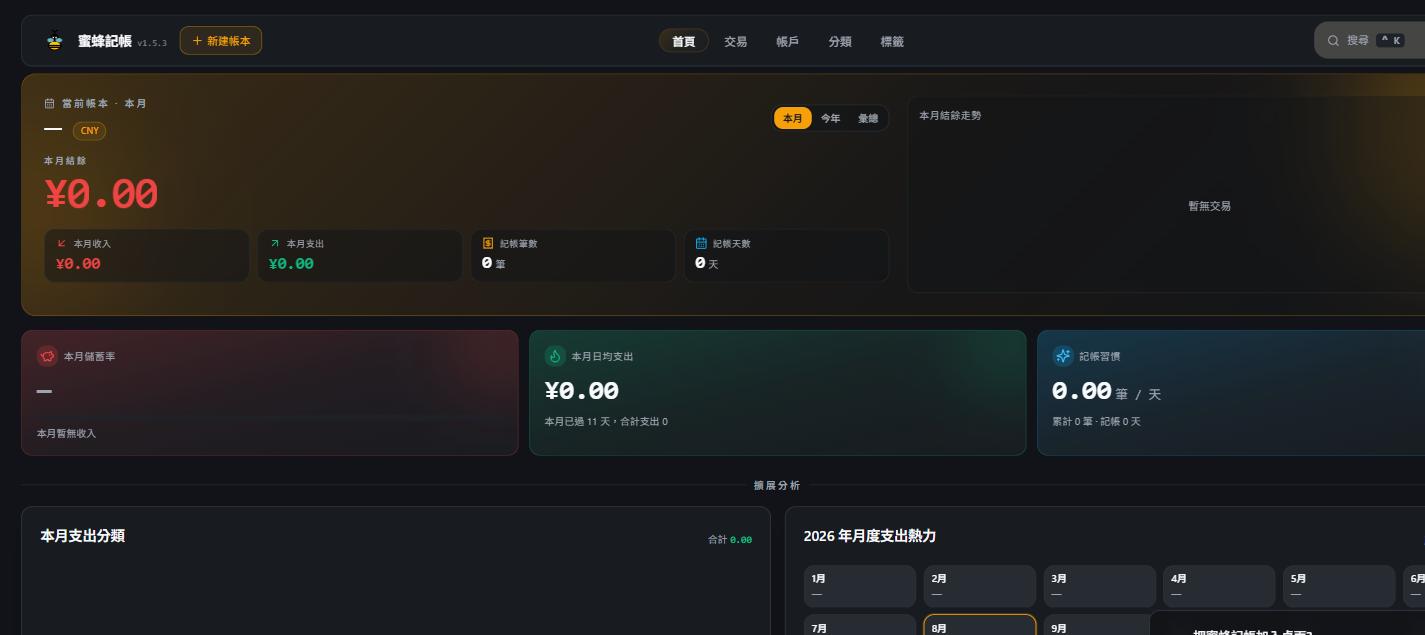
Starting with BeeCount 3.0, BeeCount Cloud ships a browser admin console — no app install needed, just open the URL to record transactions, check stats, and manage ledgers. Data syncs both ways with the mobile app in real time.
This section only covers what's web-only (command palette, admin tools, automated backups, etc). For everything else (recording, budgets, categories, AI assistant...), the web-specific steps already live inside each feature's own doc, usually in a "Web" section near the bottom — for example Recording, Budget management, AI configuration.
Getting started
Sign in
Open your BeeCount Cloud URL in a browser (e.g. http://192.168.1.100:8869 or your own domain) and sign in with email + password — the same account as the mobile app, same data on both sides.
Install as a PWA (optional)
The web console is a Progressive Web App (PWA):
- An "Install" icon appears on the right side of the address bar — click it to add the app to your desktop / dock / start menu
- Once installed, it opens without the browser chrome, feeling close to a native app
- Cached data is available offline, and syncs automatically once you're back online
See BeeCount Cloud deployment docs for more.
Layout tour
Top nav: Home / Transactions / Accounts / Categories / Tags. Top right: search (command palette) and the avatar menu.
Opening the avatar menu, grouped by section:
| Group | Item | Notes |
|---|---|---|
| Tools | Budget / Ledgers / Annual report | Budget and ledgers are covered in their own docs; annual report is an immersive year-in-review |
| Settings | Profile | Theme color, language, two-factor auth |
| Settings | AI Settings | See AI configuration |
| Settings | Health | Server health check, see Admin features |
| Settings | Devices | Devices you've signed in from, see Admin features |
| Settings | Developer | MCP personal access tokens, see the MCP doc |
| Admin | Users / Backup / Data cleanup | Admin-only, see Admin features and Automated backups |
| Preferences | Theme / Language | Dark mode, locale switching |
Web-only features
These have no equivalent screen in the mobile app — they're web-only:
| Feature | Notes |
|---|---|
| Command palette ⌘K / Ctrl+K | Keyboard-driven quick actions and page navigation |
| Admin features | Platform user management, server health check, sitewide online devices |
| Automated backups | rclone-based scheduled backups to S3 / WebDAV / Google Drive and more |
| MCP personal access tokens | Let Claude Desktop / Cursor and other LLM clients read and write your ledger directly |
| Bulk operations | Multi-select delete and CSV export in the transaction list, see Transaction management |
| Paste-to-record | ⌘V to paste text/images straight into AI recording, see AI image recognition |
Key differences from the app
- No biometric app lock on the web — session security relies on 2FA + device management instead
- Bulk operations (multi-select delete, CSV export) are web-only; mobile requires handling transactions one at a time
- Admin-only features (user management, backups, health check) are visible only on the web and require
is_adminpermission - Keyboard shortcuts and the command palette are a web-only productivity tool