Automated Backups
Avatar menu → Backup (admin only) sets up scheduled, automated backups for the whole BeeCount Cloud server, pushing data to your own remote storage instead of relying solely on the local data/ directory.
Three tabs: History & progress, Schedules, Remote settings. Configure them in the order: remote settings → schedules → history & progress.
Remote settings
First, decide where backups go — anything rclone supports: S3, Google Drive, WebDAV, B2, and more.
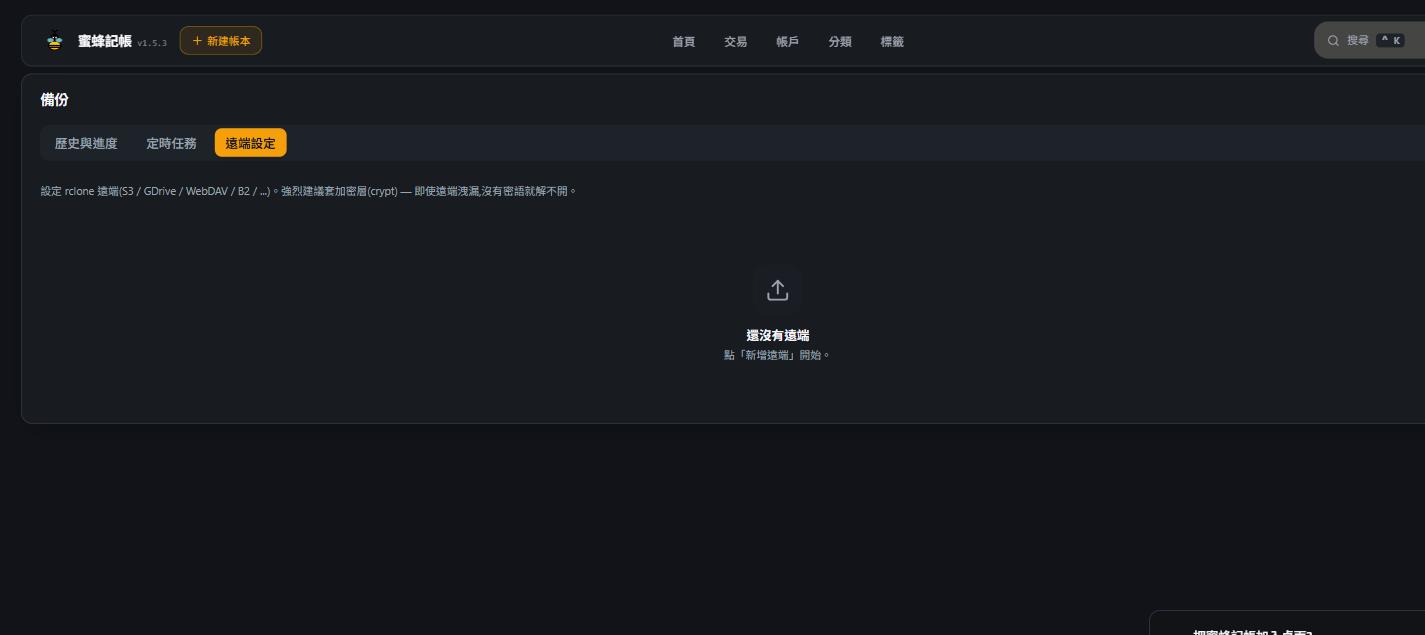
When configuring a remote, turn on the encryption layer (crypt). That way, even if your remote storage account is compromised, the backup contents can't be read without the passphrase you set.
You can configure multiple remotes, and a scheduled job can push to several of them at once for redundancy (e.g. S3 plus a local WebDAV).
Schedules
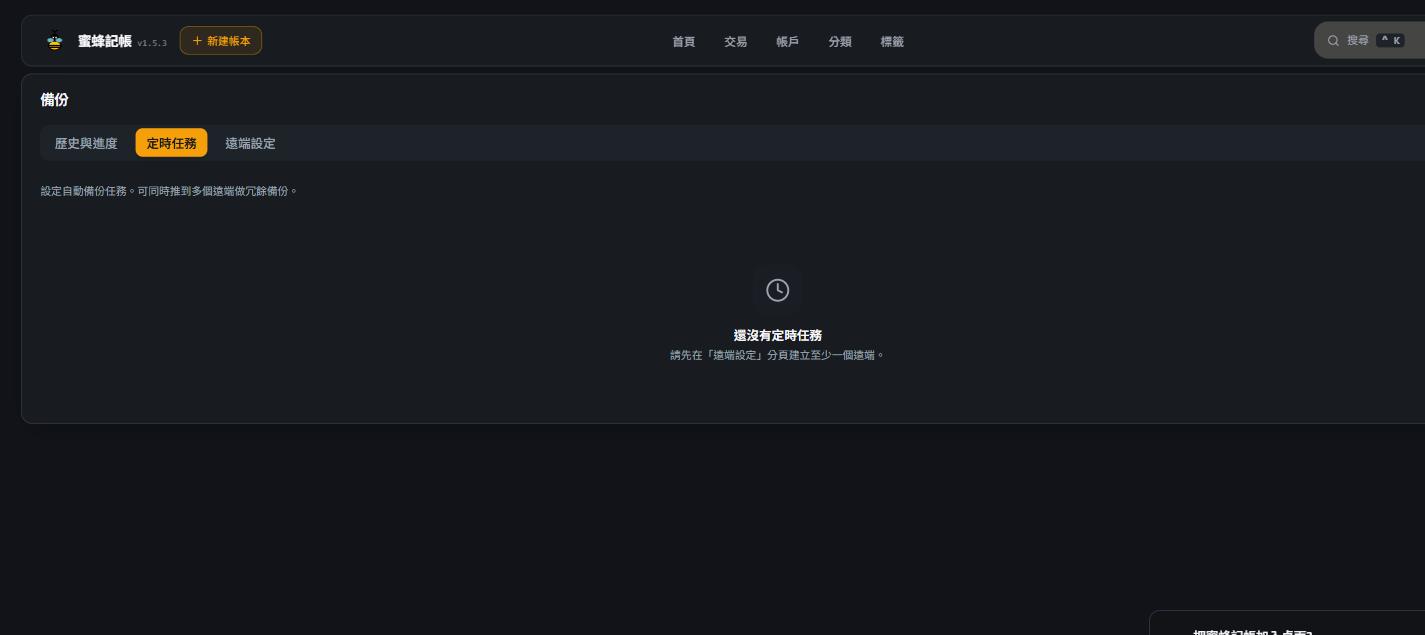
Set the automated backup schedule (e.g. a daily time). You need at least one remote configured under "Remote settings" before you can create a schedule.
History & progress
Review each backup run — success or failure, duration, which remote it went to.
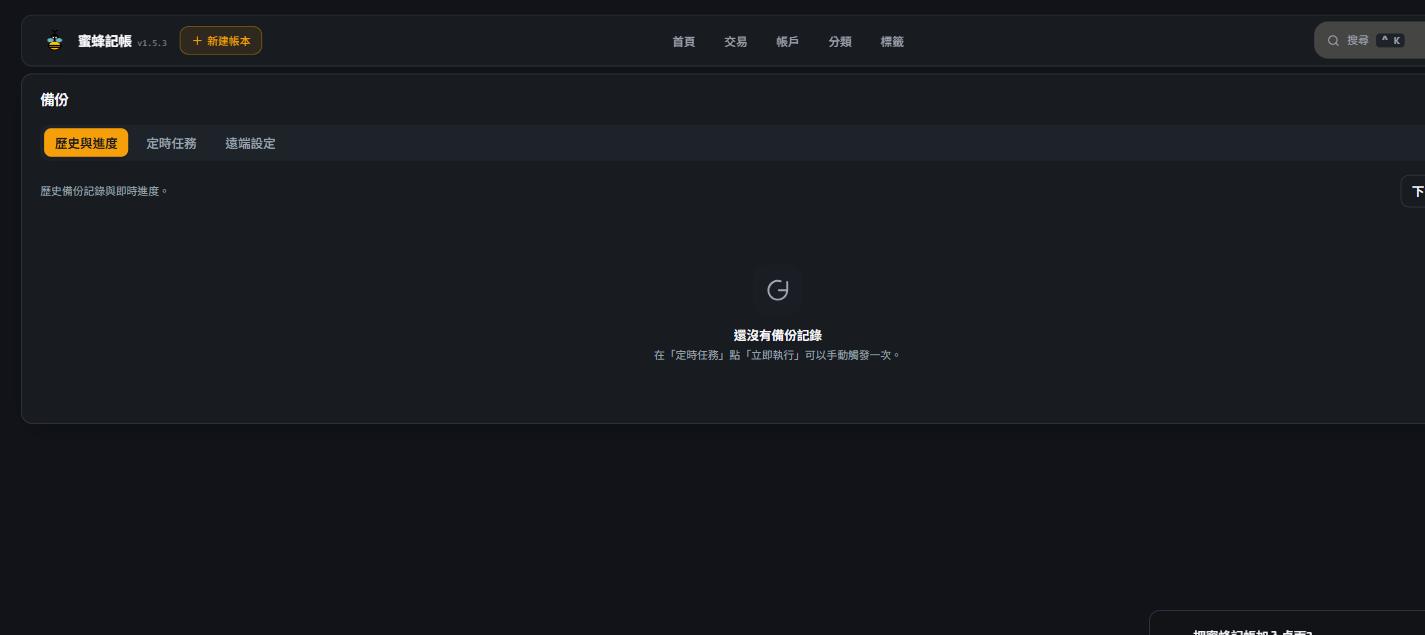
On the "Schedules" tab, "Run now" triggers a backup immediately without waiting for the next scheduled time — handy before an upgrade or a big data import as a safety net.
How this relates to manual data/ backups
The manual rsync data/ approach mentioned in the BeeCount Cloud deployment docs and this web-based automated backup are complementary:
data/ directory rsync | Web automated backup | |
|---|---|---|
| Trigger | Manual, or your own cron job | Configured in the web UI, runs automatically |
| Destination | Anywhere you choose | Any rclone-supported remote (S3 / WebDAV / GDrive, etc) |
| Encryption | You handle it yourself | Built-in crypt encryption option |
| Best for | Server migration, occasional manual backups | Unattended, ongoing off-site backups |
We recommend setting up at least one automated remote backup as your day-to-day safety net; for server migrations, a direct rsync of the data/ directory is still simpler and more complete to restore from.