Import & Export
BeeCount supports CSV format for data import and export.
Export Data
- Go to "Me" → "Data Management"
- Tap "Export Data"
- Select export scope (All / Current Ledger)
- Choose whether to include attachments
- Share or save the file
Export Options
- Transaction data only - Exports a CSV file
- Include attachments - Exports a ZIP archive containing CSV and attachments folder
Import Data
Supported Formats
- WeChat Bills - CSV exported from WeChat
- Alipay Bills - CSV exported from Alipay
- Standard CSV - BeeCount's export format
- Tab-separated files - TSV format supported
Import Steps
- Go to "Me" → "Data Management"
- Tap "Import Data"
- Select a CSV file
- Preview and confirm import
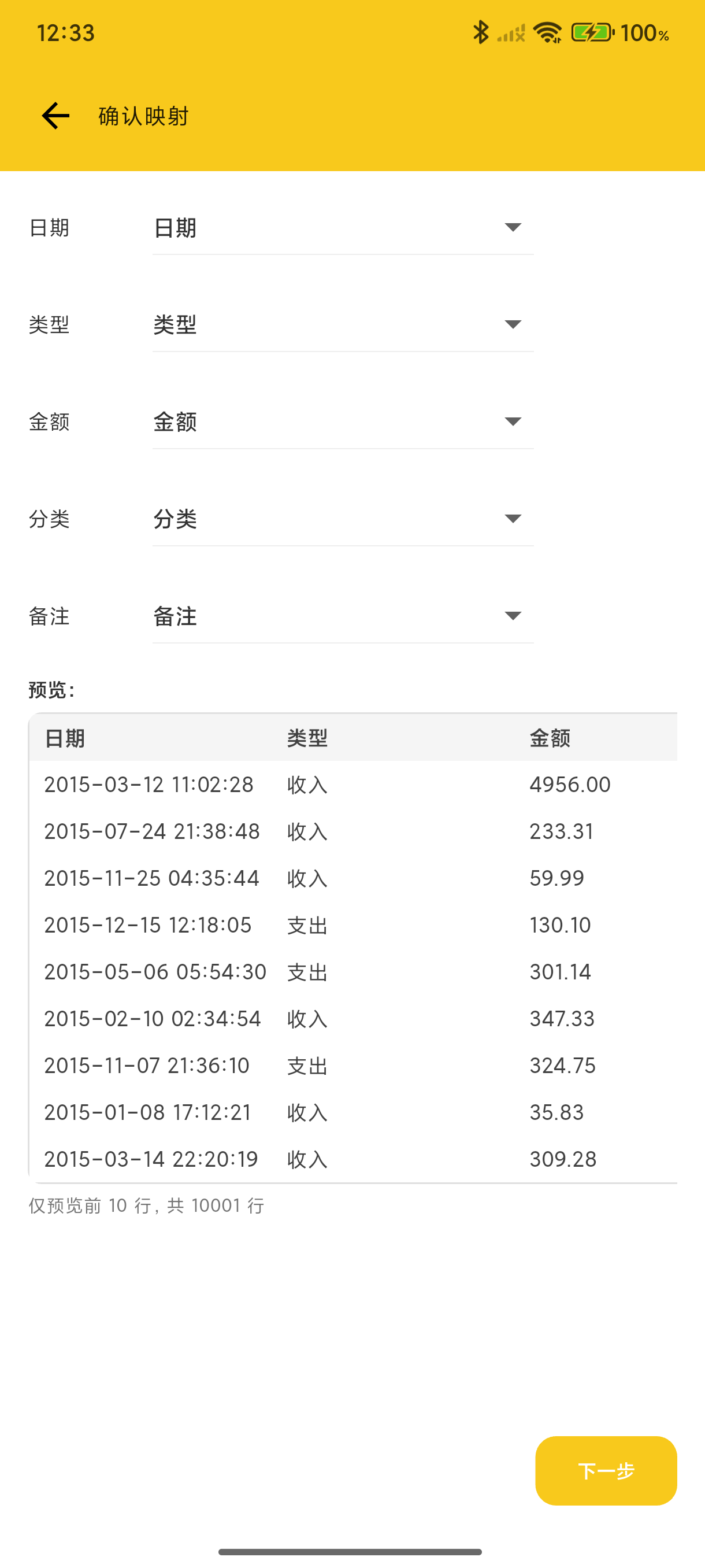
Configuration Import/Export
Besides transaction data, you can also import/export app settings:
- Category settings
- Account settings
- Tag settings
- Budget settings
- Recurring entries
Great for syncing settings across devices or backing up your configuration.
Web Import
After logging in to BeeCount Cloud on the web, the desktop browser is better suited for large files and historical data migrations. Entry points: Ledgers list → ↑ upload icon on a card, or ⌘K command palette → "Import ledger data".
Supported Formats
- CSV / TSV: UTF-8 / GBK auto-detect
- Excel (.xlsx): spreadsheets exported from Alipay / WeChat / bank, or hand-cleaned by users
Auto field mapping
The server detects column headers across many naming styles (BeeCount native, Alipay, WeChat, bank statements):
- "Type / 收/支" → tx type
- "Amount / 金额(元)" → amount
- "Time / 交易时间 / 交易创建时间" → time
- "Category / 类别 / 商品类目 / 交易类型" → primary category
- "Subcategory / 子分类" → subcategory
- ...
Not happy? Click Edit mapping to open a dialog, change columns, and the preview re-computes live.
Pre-import preview (web only)
Unlike mobile, web forces a preview step before execution to prevent mistakes on large datasets:
- Stats cards: total rows / time range / signed total
- Will create / merge: counts of new vs existing accounts, categories, tags (expandable to see names)
- First 10 transactions table: see what parsed data actually looks like
- Parse warnings / errors: collapsible list of problem rows
Atomic rollback
Same contract as mobile — any single row failure → the whole batch rolls back, ledger unchanged. The SSE progress bar's 4 stages (accounts / categories / tags / transactions) all run on a server-side in-memory snapshot mutate; only a successful run reaches db.commit. The failure terminal screen shows the offending row number, field, and raw CSV line so you can fix and retry.
Limits
- Single file ≤ 10 MB
- Up to 50,000 transactions per file
- One active parse session per user (re-uploading auto-cancels the old one)
- Parse result cached for 30 minutes; re-upload after expiry